

AMAZON INTEGRATION
To connect to Amazon login into Seller Central:
Then go Apps & Services - Discover Apps

Search for Mintsoft OMS:

Click on the Icon

Then click the Authorise Now button

Click next
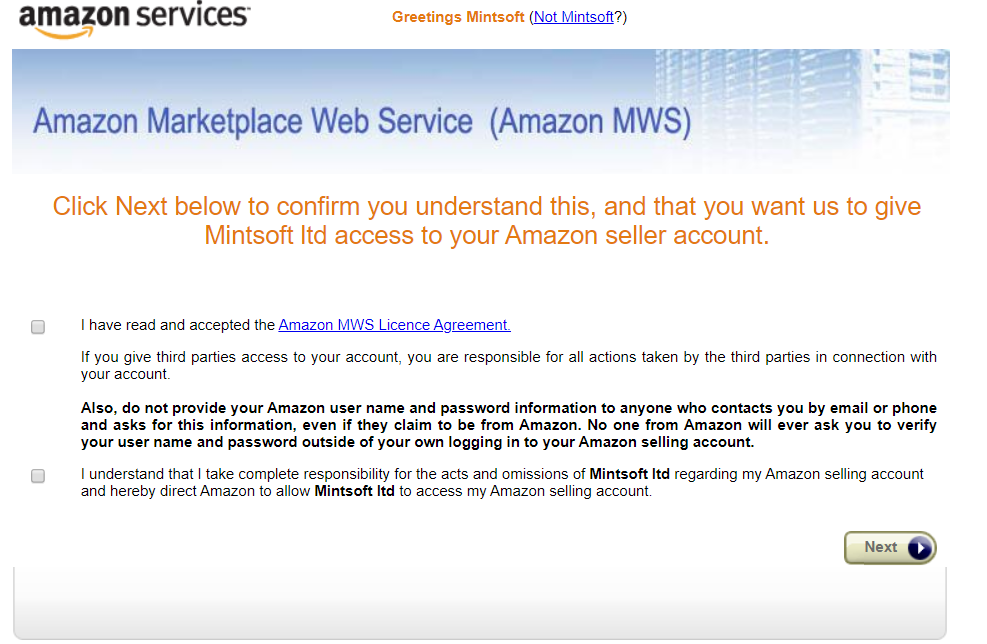
Then accept T & Cs and click next.

Make a note of the Seller ID and MWS Auth Token as you'll need to enter that into Mintsoft directly.
Mintsoft Connect Setup
You now need to input the merchantId and MWSAuthToken into Mintsoft, by navigating to Connect > Order Integrations >Amazon and selecting create new account.
You will need to select the marketplace you have signed up to via the drop down (the merchantId and MWSAuthToken remain the same for each country marketplace, all that changes is the marketplace.)

We advise to set the connection to N for active until you are ready to connect.
You can set to active at a later date once it has been setup.
You can also choose if you wish to sync stock levels and the delay period in minutes (how often we sync - minimum is 15 minutes)
Once you have made your desired choices click create in the bottom right.
Other Options
Include Bundles in Stock Sync = If you sell your stock in bundles select this option to sync stock for these items
Shipping Mapping
Amazon uses the following shipping terms depending on the marketplace for standard shipping:
STD UK DOM
STD UK INT
EXP UK INT
STD DE DOM
STD DE INT
EXP DE INT
STD FR DOM
STD FR INT
EXP FR INT
STD IT DOM
STD IT INT
EXP IT INT
STD ES DOM
EXP ES INT
STD ES INT
EXP stands for Express
STD stands for Standard
DOM stands for Domestic
INT stands for International
Multiple Rates / Zones!
If the store offers multiple courier rates or zones, Amazon will add _1 for each zone at the end.
For example EXP UK DOM_1 or EXP UK DOM_2
Premium Shipping Methods
if you offer one day or two day premium shipping this will be communicated as:
UK NEXT
UK SECOND
Prime Shipping Methods
If you are on the seller fulfilled prime programme then the mappings will have -PRIME at the end of the tag.
e.g.
STD UK DOM_1-PRIMESTD UK DOM_2-PRIMESTD UK DOM-PRIMEUK NEXT-PRIMEUK SECOND-PRIME
Map these terms in the courier name field on OMS in Shipping > Courier Service Mappings
Trouble Shooting
Error - Custom Amazon AccessKeys/SecretAccessKeys are prohibitied - Please Remove Custom AccessKey and SecretAccessKey from the connection and connect using MWSAuthToken method instead
Amazon only allows Mintsoft to connect to their API using our access tokens. This will mean you need to follow the steps details above to obtain a MWSAuthToken to connect to amazon instead.
Make sure you remove both the AccessKey and SecretAccesskey from the connection when updating.
Case Sensitive!
Amazon SKU matching is case sensitive, so if your SKUs on Mintsoft are UPPERCASE and SKUS on Amazon are lowercase then stock sync will not work!
If they are different, then you need to adjust the SKUS in Mintsoft to match Amazon, as it is not possible to adjust Amazon SKUs once setup.